M365 Data Exporter User Guide
The Mission Lens M365 Data Exporter is a high-performance Go application designed to efficiently extract data from your Microsoft 365 tenant using the Microsoft Graph API.
Overview
The exporter supports extracting the following data types:
- Emails: Messages from Exchange Online mailboxes
- Teams Messages: Chat messages and channel posts
- SharePoint: Documents, lists, and metadata
- OneDrive: Files and sharing permissions
- Calendar: Events and meeting information
- Contacts: Contact information and distribution lists
Prerequisites
Before using the M365 Data Exporter, you need:
-
Azure AD Application Registration
- Application (client) ID
- Client secret or certificate
- Tenant ID
-
Microsoft Graph API Permissions
- Mail.Read or Mail.ReadWrite
- Chat.Read (for Teams)
- Files.Read.All (for SharePoint/OneDrive)
- Calendars.Read
- Contacts.Read
- User.Read.All
-
Admin Consent
- Application permissions require admin consent for your tenant
Installation
Download the Binary
The exporter is distributed as a standalone binary for multiple platforms:
# Linux
wget https://github.com/patchly/mission-lens/releases/latest/download/m365-exporter-linux-amd64

# macOS
wget https://github.com/patchly/mission-lens/releases/latest/download/m365-exporter-darwin-amd64

# Windows
# Download from releases page
Build from Source
git clone https://github.com/patchly/mission-lens.git
cd mission-lens/exporter
go build -o m365-exporter .
Getting Started Walkthrough
This section provides a visual guide to help you get started with the M365 Data Exporter.
Step 1: Launch the Application
When you first launch the M365 Data Exporter, you’ll see the welcome screen:
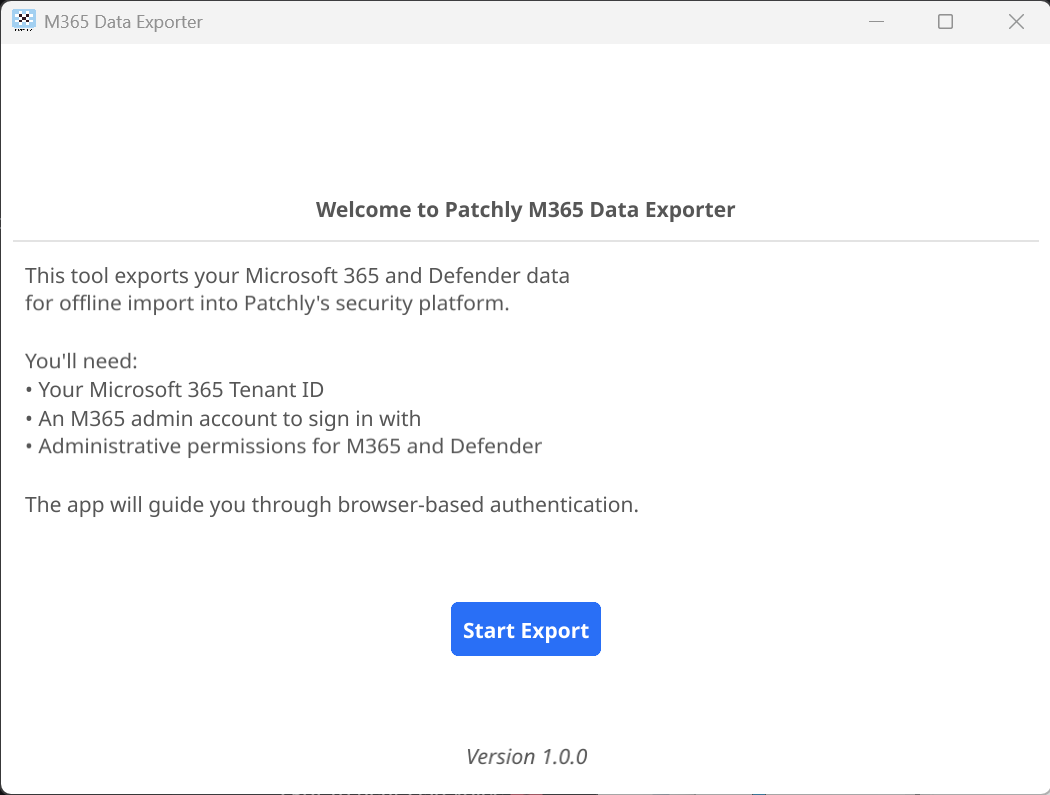
The welcome screen explains what you’ll need:
- Your Microsoft 365 Tenant ID
- An M365 admin account to sign in with
- Administrative permissions for M365 and Defender
Click Start Export to begin the configuration process.
Step 2: Configure Authentication
Next, you’ll configure your Azure AD authentication settings:
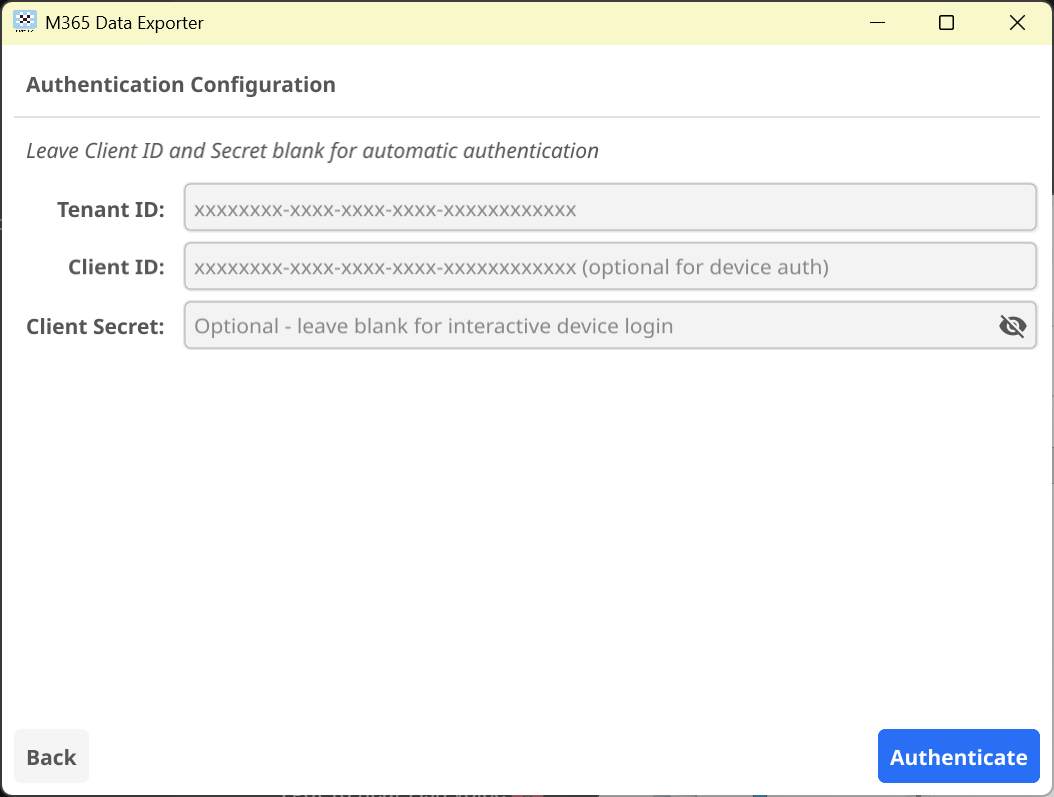
Enter your credentials:
- Tenant ID: Your Azure AD tenant ID (required)
- Client ID: Optional for device-based authentication
- Client Secret: Optional - leave blank for interactive device login
Tip: For first-time setup, leave Client ID and Secret blank to use the simplified device authentication flow.
Click Authenticate to proceed.
Step 3: Grant Permissions
You’ll be redirected to Microsoft’s consent page to grant the required permissions:
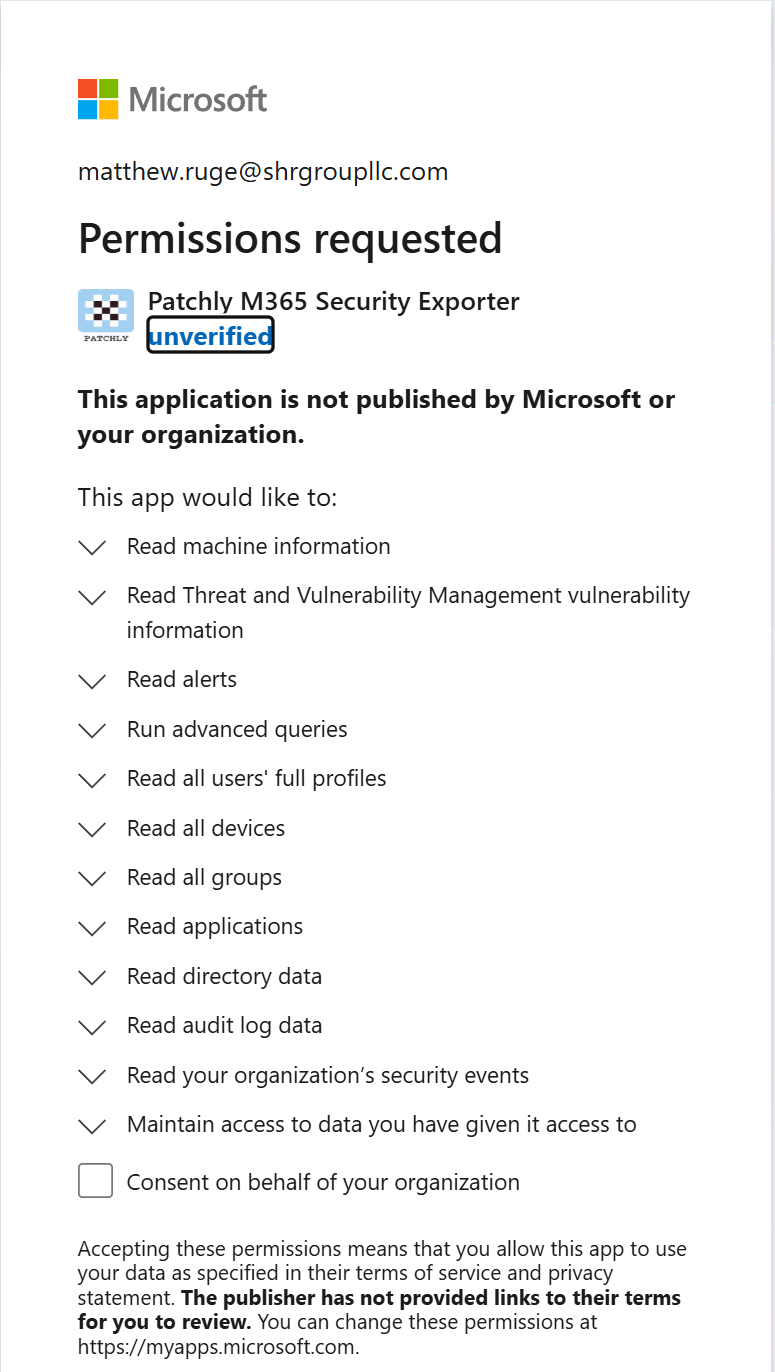
The application requests permissions to:
- Read machine information
- Read Threat and Vulnerability Management data
- Read alerts
- Run advanced queries
- Read user profiles, devices, groups, and applications
- Read directory and audit log data
- Read security events
Review the permissions and click Accept to grant consent on behalf of your organization.
Configuration
Environment Variables
Create a .env file or set environment variables:
# Required Azure AD settings
AZURE_TENANT_ID=your-tenant-id
AZURE_CLIENT_ID=your-client-id
AZURE_CLIENT_SECRET=your-client-secret

# Optional settings
EXPORT_OUTPUT_DIR=./data        # Output directory for exported data
EXPORT_FORMAT=json              # Output format: json, csv, parquet
BATCH_SIZE=100                  # Number of items per batch
CONCURRENT_REQUESTS=5           # Parallel API requests
Configuration File
Alternatively, use a config.yaml file:
azure:
  tenant_id: "your-tenant-id"
  client_id: "your-client-id"
  client_secret: "your-client-secret"

export:
  output_dir: "./data"
  format: "json"
  batch_size: 100
  concurrent_requests: 5

filters:
  start_date: "2024-01-01"
  end_date: "2024-12-31"
  users:
    - "user1@domain.com"
    - "user2@domain.com"
Usage
Basic Export
Export all data types for all users:
./m365-exporter --allExport Specific Data Types
Export only emails:
./m365-exporter --type emailExport multiple data types:
./m365-exporter --type email,teams,sharepointFilter by Date Range
Export data within a specific date range:
./m365-exporter --type email --start-date 2024-01-01 --end-date 2024-12-31Export for Specific Users
Export data for specific users only:
./m365-exporter --type email --users user1@domain.com,user2@domain.comIncremental Sync
Perform incremental sync to export only new/changed data:
./m365-exporter --type email --incrementalThe exporter maintains a state file to track the last sync timestamp.
Output Formats
JSON (Default)
{
  "id": "AAMkAGI2...",
  "subject": "Project Update",
  "from": {
    "emailAddress": {
      "name": "John Doe",
      "address": "john@domain.com"
    }
  },
  "receivedDateTime": "2024-01-15T10:30:00Z",
  "bodyPreview": "Here's the latest update..."
}
CSV
Flattened structure suitable for importing into spreadsheets:
id,subject,from_name,from_address,received_date_time,body_preview
AAMkAGI2...,Project Update,John Doe,john@domain.com,2024-01-15T10:30:00Z,Here's the latest update...
Parquet
Columnar format optimized for analytics:
- Efficient compression
- Fast query performance
- Schema evolution support
Performance Optimization
Concurrent Requests
Increase parallel API requests for faster exports:
./m365-exporter --type email --concurrent 10Note: Be mindful of Microsoft Graph API throttling limits.
Batch Size
Adjust batch size based on data volume:
./m365-exporter --type email --batch-size 500Larger batches = fewer API calls, but more memory usage.
Filtering
Use filters to reduce the amount of data processed:
# Only export emails from the last 30 days
./m365-exporter --type email --start-date $(date -d '30 days ago' +%Y-%m-%d)

# Only export emails with attachments
./m365-exporter --type email --has-attachments
Error Handling
Retry Logic
The exporter automatically retries failed requests with exponential backoff:
- Initial retry after 1 second
- Max retry attempts: 3
- Exponential backoff multiplier: 2
Error Logs
Errors are logged to exporter.log:
tail -f exporter.logThrottling
If you encounter throttling errors:
- Reduce
--concurrentvalue - Reduce
--batch-sizevalue - Add delays between requests with
--request-delay
./m365-exporter --type email --concurrent 2 --request-delay 1000Data Privacy & Security
Credentials Security
- Never commit credentials to version control
- Use environment variables or Azure Key Vault
- Rotate client secrets regularly (recommended: every 6 months)
- Use certificate-based authentication for production
Data Encryption
- All API requests use HTTPS (TLS 1.2+)
- Exported data can be encrypted at rest:
./m365-exporter --type email --encrypt --encryption-key /path/to/keyCompliance
The exporter supports compliance features:
- Audit logging of all export operations
- Data retention policies
- GDPR data subject request support
Monitoring & Logging
Progress Tracking
Monitor export progress with verbose output:
./m365-exporter --type email --verboseOutput includes:
- Number of items processed
- API request rate
- Estimated time remaining
- Error count
Metrics
Export metrics in Prometheus format:
./m365-exporter --type email --metrics-port 9090Access metrics at http://localhost:9090/metrics
Troubleshooting
Authentication Errors
Error: AADSTS700016: Application not found
Solution: Verify your AZURE_CLIENT_ID is correct and the application exists in Azure AD.
Error: AADSTS7000215: Invalid client secret
Solution: Generate a new client secret in Azure AD and update your configuration.
Error: Insufficient privileges to complete the operation
Solution: Ensure your application has the required Microsoft Graph API permissions and admin consent has been granted.
Rate Limiting
Error: 429 Too Many Requests
Solution:
- Reduce concurrent requests:
--concurrent 2 - Add request delay:
--request-delay 2000 - Check your tenant’s throttling limits
Data Export Issues
Issue: Missing emails or messages
Solution:
- Verify the user has the appropriate license (E3/E5)
- Check date range filters
- Ensure application permissions include delegate access
Issue: Large exports timing out
Solution:
- Use incremental sync:
--incremental - Export in smaller date ranges
- Export users in batches
Advanced Features
Custom Filters
Use JSON filter expressions:
./m365-exporter --type email --filter '{"importance": "high", "hasAttachments": true}'Webhooks
Configure webhooks to receive notifications:
./m365-exporter --type email --webhook-url https://your-server.com/webhookDatabase Integration
Export directly to a database:
./m365-exporter --type email --output-type mongodb --mongodb-uri mongodb://localhost:27017/mission-lensSupported databases:
- MongoDB
- PostgreSQL
- SQL Server
Best Practices
-
Schedule Regular Exports
- Use cron or Task Scheduler for automated exports
- Perform incremental syncs daily
- Full exports monthly for verification
-
Monitor Resource Usage
- Watch memory consumption for large exports
- Monitor disk space in output directory
- Track API quota usage
-
Security
- Use managed identities in Azure
- Store credentials in Azure Key Vault
- Enable audit logging
- Encrypt sensitive exports
-
Performance
- Start with conservative concurrency settings
- Gradually increase based on throttling
- Use Parquet format for large datasets
- Implement incremental sync strategy
Support
For issues or questions:
- Check the Troubleshooting guide
- Review GitHub Issues
- Consult Microsoft Graph API documentation
Last updated: January 2025